Beta: the REVER Analytics MCP is in beta. It works and you can use it today, but the available tools, prompts and answers are still evolving, and some questions may not be supported yet. Expect changes, and please send any feedback or missing capabilities to feedback@itsrever.com.
The REVER Analytics MCP is a remote Model Context Protocol server that connects your AI assistant to your REVER returns and orders data. Once connected, you can ask questions in natural language and the assistant queries REVER on your behalf: no dashboard, no manual export.
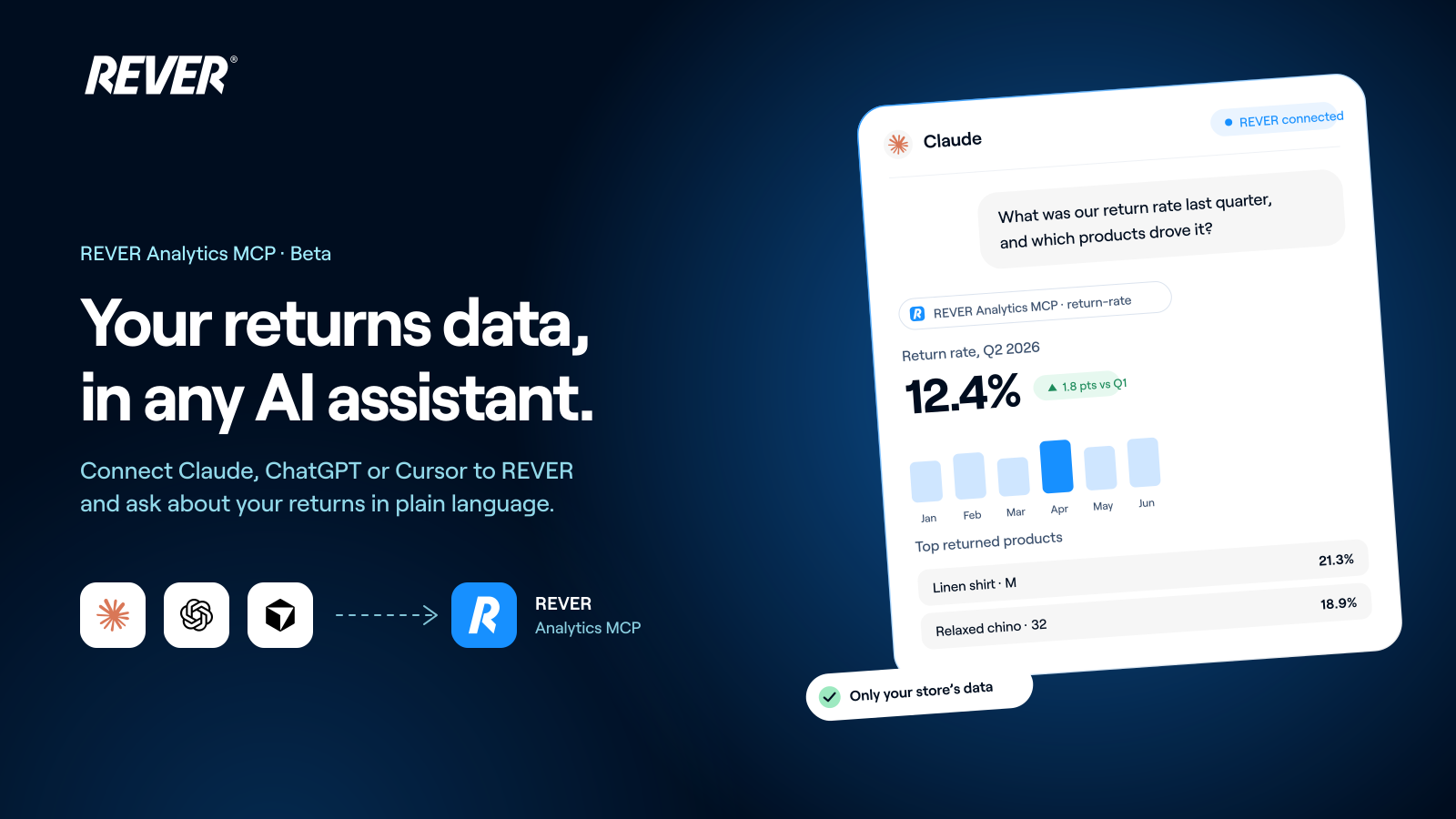
You can use it to:
- Find definitions for key metrics
- Track how your metrics evolve over time
- Break down and compare your returns data by product, variant, reason, or period
- Create tailored queries and data exports
- Explore other insights from your REVER data
The server only exposes data for the e-commerce your REVER account belongs to.
- A REVER account, the same one you use to log in to the REVER dashboard. Anyone with dashboard access can use the MCP; no extra approval or API key is needed.
- An MCP-capable client, installed and up to date: Claude Desktop, Claude Code, ChatGPT, Cursor, VS Code with GitHub Copilot, or Codex.
All clients use the same values. Authentication is OAuth 2.0 with your REVER login; the client opens a browser window where you sign in.
| Field | Value |
|---|---|
| Server URL | https://analytics-mcp.itsrever.com/mcp |
| Transport | Streamable HTTP |
| Authentication | OAuth 2.0 (REVER login) |
| OAuth Client ID | Kh8FOHYbopPqT3gj3zZMhwbdJBX7T1mS |
| OAuth Client Secret | Leave empty |
The Client ID is a public identifier and is safe to share. There is no client secret.
Open Settings, then Connectors, then Add custom connector.
Fill in the form:
Field Value Name REVER Analytics MCPRemote MCP server URL https://analytics-mcp.itsrever.com/mcpOAuth Client ID (Advanced settings) Kh8FOHYbopPqT3gj3zZMhwbdJBX7T1mSOAuth Client Secret (Advanced settings) Leave empty Click Add. Claude opens the login flow in your browser. Sign in with your REVER account.
From the Claude Code terminal you can add the server directly:
claude mcp add --transport http rever-analytics https://analytics-mcp.itsrever.com/mcpThen run /mcp, select rever-analytics, and complete the login in the browser.
ChatGPT hides custom connectors behind Developer mode and requires a paid plan (Plus, Pro, Team, or Enterprise).
Open Settings, then Connectors, scroll to Advanced settings and turn on Developer mode. This is a one-time step.
Click Add custom connector and fill in the form:
Field Value Name REVER Analytics MCPServer URL https://analytics-mcp.itsrever.com/mcpAuthentication OAuthOpen Advanced OAuth configuration, then Registration method, and switch it to the user-defined OAuth client option. Two new fields appear:
Field Value OAuth Client ID Kh8FOHYbopPqT3gj3zZMhwbdJBX7T1mSOAuth Client Secret (optional) Leave empty Save, then click Connect or Authorize to open the login flow in your browser.
Open Cursor Settings, then MCP, then Add new global MCP server. For a project-scoped server, add the config to the project's
.cursor/mcp.jsoninstead.Paste this configuration:
{
  "mcpServers": {
    "REVER-analytics": {
      "url": "https://analytics-mcp.itsrever.com/mcp",
      "auth": {
        "CLIENT_ID": "Kh8FOHYbopPqT3gj3zZMhwbdJBX7T1mS"
      }
    }
  }
}
Enable or refresh the server from Cursor Settings, then MCP. Cursor opens the login flow in your browser.
Create
.vscode/mcp.jsonin your workspace, or run MCP: Add Server from the Command Palette.Paste this configuration:
{
  "servers": {
    "REVER-analytics": {
      "type": "http",
      "url": "https://analytics-mcp.itsrever.com/mcp",
      "oauth": {
        "clientId": "Kh8FOHYbopPqT3gj3zZMhwbdJBX7T1mS"
      }
    }
  }
}
From the Command Palette run MCP: List Servers, select
REVER-analytics, then Start Server. This triggers the login flow in your browser.Open Copilot Chat and switch the mode to Agent. MCP tools only run in Agent mode. Click the tools icon to confirm the
REVER-analyticstools are listed.
Codex needs one setting the other clients do not: a fixed port for the login callback. REVER accepts a single pre-registered port, so use the values below exactly as written.
Open
~/.codex/config.toml, or.codex/config.tomlin your project for a project-scoped server, and add:[mcp_servers.rever-analytics] url = "https://analytics-mcp.itsrever.com/mcp" [mcp_servers.rever-analytics.oauth] client_id = "Kh8FOHYbopPqT3gj3zZMhwbdJBX7T1mS" callback_port = 8391 callback_url = "http://127.0.0.1/callback"Leave
callback_urlwithout a port number. Codex fills incallback_portitself, and the login is rejected if either line is missing or changed.Run
codex mcp login rever-analytics. Codex opens the login flow in your browser. Sign in with your REVER account.Run
codex mcp listto confirm the server is connected.
Any client that supports remote MCP servers over Streamable HTTP with OAuth 2.0 can connect using the values in Connection details. Most clients only need the server URL and the Client ID.
The server ships prompts for the most common analytical questions. Clients that support MCP prompts list them as slash commands or suggestion chips:
| Prompt | Default period |
|---|---|
return-rate | Return rate evolution over the last 6 months |
product-performance | Product return performance over the last 3 months |
return-reasons | Return reasons breakdown over the last 3 months |
compensation-methods | Compensation methods breakdown over the last 3 months |
refund-methods | Refund methods breakdown over the last 3 months |
Each prompt accepts an optional period argument to change the time range.
- Data freshness: analytics data is refreshed daily, so figures for today may be incomplete.
- Scope: every query is scoped to your e-commerce. You cannot see data from other REVER merchants.
- Read-only: the MCP only reads data. It cannot create, modify or cancel returns. Use the Admin API for that.
- The login is rejected or the connector shows as misconfigured: this is not something on your end. Reach out to your REVER contact or email feedback@itsrever.com.
- Codex reports that the callback is not registered: check that
callback_portis8391, thatcallback_urlhas no port number, and that nothing else on your machine is using port 8391. - The tools do not appear in the client: make sure the server is started and authorized. In VS Code, MCP tools are only available in Agent mode.
- The connector shows a generic icon: some clients ignore the icon provided by custom MCP servers. This is expected and does not affect functionality.
During the beta, the set of tools and prompts may change without notice. If you find a question it cannot answer or a capability you are missing, let us know at feedback@itsrever.com.